

What is Imitation Learning?
Imitation Learning lets you show Narada how to do something by recording your browser actions while narrating what you’re doing. Narada watches your actions, listens to your narration, and automatically generates a reusable agent workflow.Think of it as screen recording meets AI. You demonstrate a task once, and Narada creates an agent that can repeat it.
How It Works
1
Record your actions
Perform the task in your browser while narrating what you’re doing. Narada captures your clicks, typing, navigation, screenshots, and audio.
2
Narada processes the recording
Your narration is transcribed, actions are analyzed, and element selectors are validated for robustness.
3
A workflow is generated
Narada generates a complete agent workflow from your recording that can be reviewed, edited, and reused.
Getting Started
Starting a Recording
You can start an Imitation Learning recording from the Agent Studio:1
Open Agent Studio
Navigate to the Agent Studio from the Narada sidebar.
2
Click Create
Click the + Create button to open the creation dialog.
3
Select Imitation Learning
Choose Imitation learning from the options. The description reads: “Record your actions to teach the agent by example.”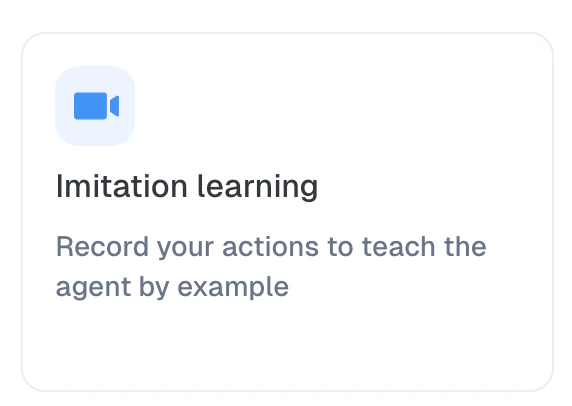
4
Review tips and start
You’ll see an intro screen with tips for best results: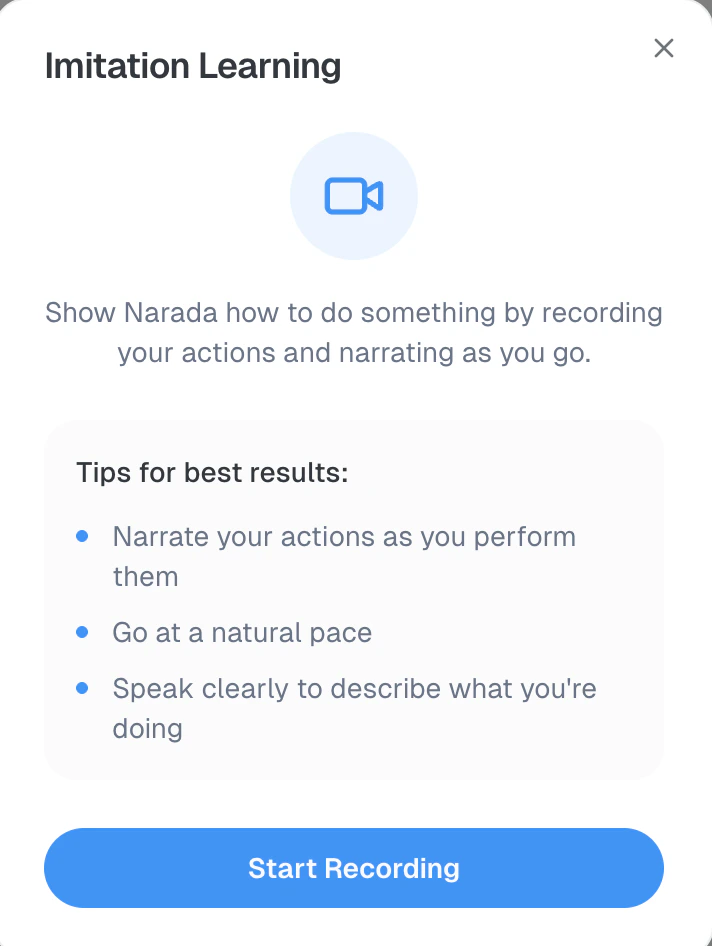
- Narrate your actions as you perform them
- Go at a natural pace
- Speak clearly to describe what you’re doing
The Narada Chrome Extension must be installed for Imitation Learning to work. If it’s not installed, you’ll be prompted to install it.
During Recording
Once recording starts, you’ll see a recording interface in the Narada side panel: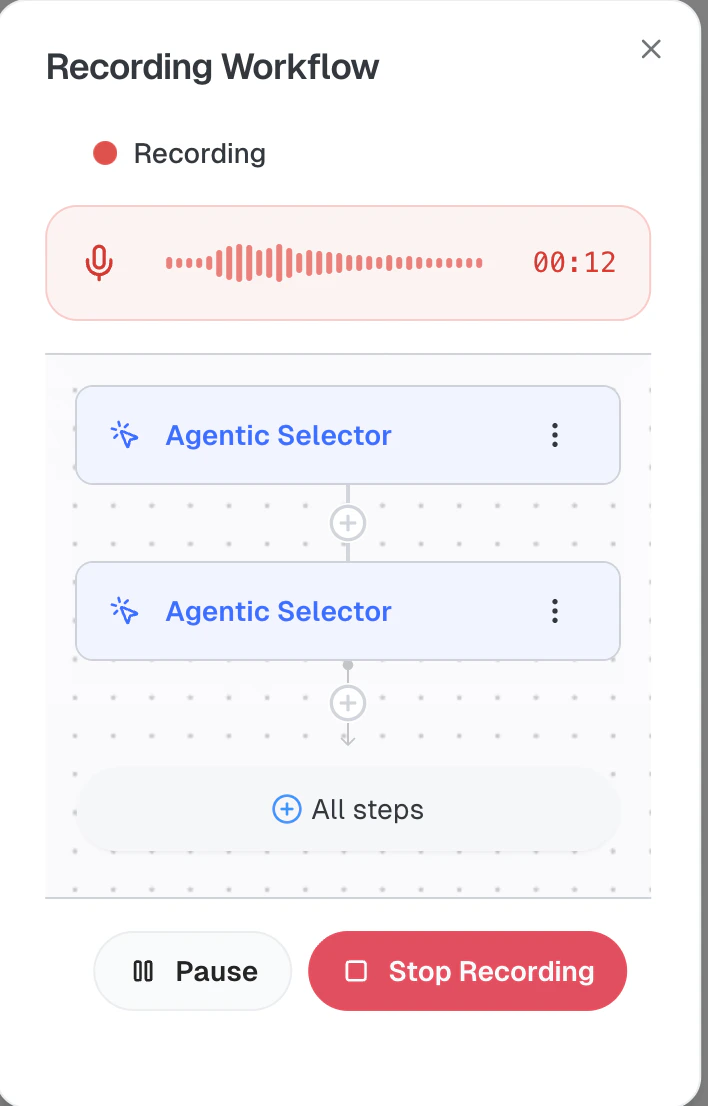
- A red pulsing indicator shows that recording is active
- A timer tracks elapsed time (MM:SS format)
- An audio waveform visualizes your microphone input in real-time
- A live workflow editor shows captured steps as they’re detected
What Gets Captured
During your recording, Narada captures:Browser Actions
Clicks, text input, keyboard events (Tab, Enter, Escape), and page navigation
Audio Narration
Your voice narration is transcribed with timestamps for each segment
Screenshots
Visual snapshots of the page at key moments during your workflow
Page Structure
HTML snapshots and element selectors for robust action replay
After Recording
When you click Stop Recording, Narada processes your recording through several stages:1
Selector filtering
Element selectors are validated and filtered for robustness. You’ll see progress: “Filtering X/Y selectors…”
2
Audio transcription
Your narration is transcribed into text with segment-level timestamps.
3
Workflow generation
Narada analyzes the recording context (actions, narration, screenshots, and page structure) to generate a complete agent workflow. This usually takes a few minutes.
4
Review your workflow
Once generation is complete, you’ll see a success screen with an Open Workflow button. Click it to review and edit the generated workflow in the Agent Studio.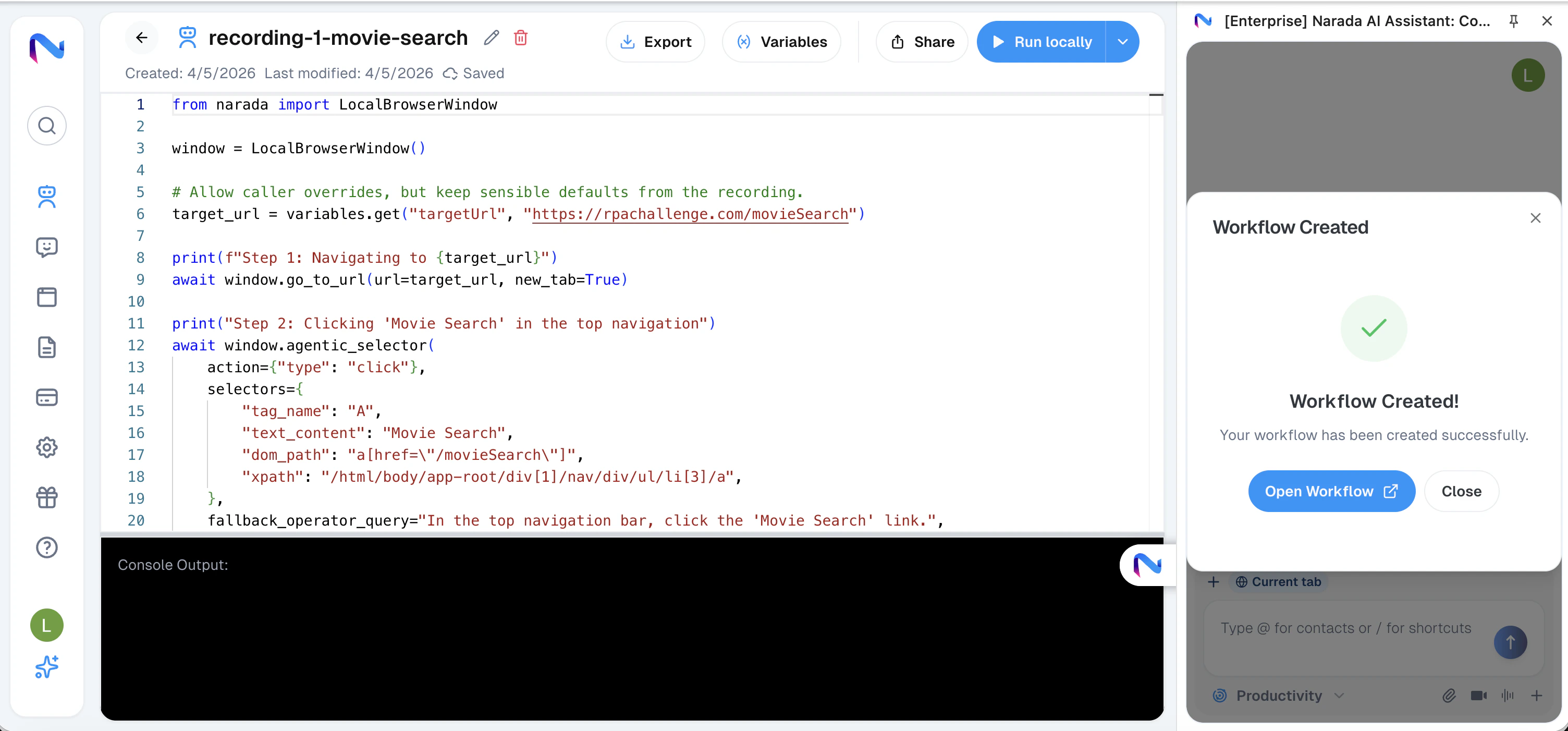
Editing the Generated Workflow
The generated workflow opens in the Agent Studio editor where you can:- Review each step to verify it matches your intent
- Edit step instructions to refine the automation
- Add or remove steps to customize the workflow
- Test the workflow by running it directly
Tips for Best Results
Narrate Clearly
Describe what you’re doing and why as you perform each action. The narration helps Narada understand your intent, not just the mechanics.
Go at a Natural Pace
Don’t rush through actions. Give Narada time to capture each step properly.
Keep It Focused
Record one specific workflow per session. Complex multi-part tasks are better split into separate recordings.
Use Clear Websites
Ensure pages are fully loaded before interacting with them. Avoid recording during loading spinners.
Troubleshooting
Recording won't start
Recording won't start
- Ensure the Narada Chrome Extension is installed and you’re signed in
- Check that your browser has microphone permissions enabled for Narada
- Try refreshing the page and starting again
Generated workflow doesn't match my actions
Generated workflow doesn't match my actions
- Make sure you narrated clearly during recording. Narration significantly improves generation quality
- Try recording at a slower pace
- You can always edit the generated workflow in Agent Studio to fix specific steps
Audio not being captured
Audio not being captured
- Check your browser’s microphone permissions
- Ensure your microphone is not muted at the OS level
- Try a different microphone if available