

What are Cloud Browser Sessions?
Cloud Browser Sessions let you run Narada automation tasks in serverless, cloud-hosted browsers without a local Chrome installation or Narada extension. This is ideal for server-side automation, CI/CD pipelines, and running tasks at scale.No Local Chrome
Run tasks from any server or script without a desktop browser
Scalable
Spin up multiple cloud browsers in parallel for high-throughput automation
Persistent Sessions
Sessions stay alive until you close them or they time out
Getting Started with the SDK
UseCloudBrowserEnvironment to create a hosted browser session, then bind an Agent to that environment:
Agent.run(), go_to_url(), get_screenshot(), structured output, GIF recording, MCP servers, and input variables work the same way on cloud browser environments as they do on local browser environments.Session Lifecycle
Cloud browser sessions have a different lifecycle than local browser windows:1
Create an environment
Construct
CloudBrowserEnvironment(session_name=..., session_timeout=...).2
Run tasks
Create
Agent(environment=env) and call agent.run(), agent.go_to_url(), agent.get_screenshot(), or other agent methods.3
Save IDs when needed
After the environment initializes, read
env.cloud_browser_session_id and env.browser_window_id if you need to reconnect later.4
Reconnect
Use
RemoteBrowserEnvironment with the saved IDs to reconnect to a running cloud browser session.5
Close
Call
await env.close() when you’re done. If you reconnect with RemoteBrowserEnvironment, calling close() on that environment stops the cloud session.Reconnect to a Cloud Session
Save the session identifiers after creating a cloud browser:RemoteBrowserEnvironment:
Closing a
RemoteBrowserEnvironment with cloud_browser_session_id stops the backing cloud session.Download Files from a Session
Useget_downloaded_files() on a cloud-backed environment:
Using Cloud Browsers via the REST API
You can also use cloud browsers through the Remote Dispatch API by settingexecutionMode to "cloud_browser":
When using
executionMode: "cloud_browser", you do not need to provide a browserWindowId. A fresh cloud browser session is created automatically.Execution Modes Compared
The Remote Dispatch API supports three execution modes:Managing Sessions in the Dashboard
You can view and manage your cloud browser sessions from the Narada web dashboard: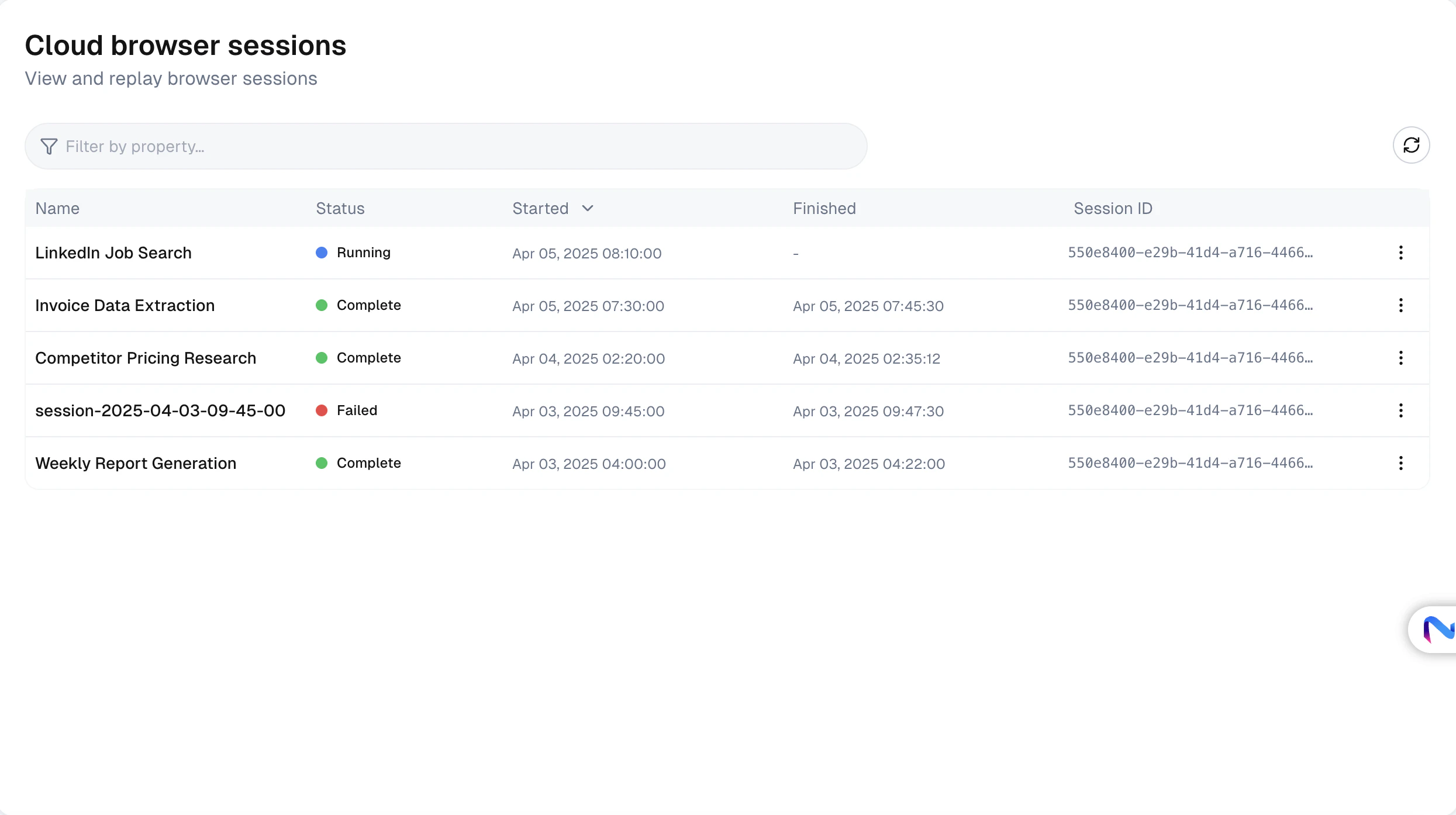
- View active sessions with their status, name, and creation time
- Watch live sessions via the session player
- Replay completed sessions to review what the agent did
- Download action traces as JSON for debugging
- Download files that were saved during the session
- Stop sessions that are no longer needed
Best Practices
Always Close Sessions
Call
await env.close() when done to stop billing. Do not rely only on timeout.Set Reasonable Timeouts
Use
session_timeout to auto-expire sessions you might forget to close manually.Name Your Sessions
Use
session_name to label sessions so you can identify them in the dashboard.Use for CI/CD
Cloud browsers are suited for automated pipelines with no desktop browser or extension.
Troubleshooting
Session creation fails
Session creation fails
- Verify your API key is valid and has sufficient credits
- Check your internet connection
- Contact support if the issue persists
Session times out unexpectedly
Session times out unexpectedly
- Increase
session_timeoutwhen creating the session - Ensure your tasks complete within the timeout window
- For long-running tasks, break them into smaller steps
Cannot reconnect to a session
Cannot reconnect to a session
- Verify the session has not been stopped or timed out
- Check that you’re using the correct
cloud_browser_session_idandbrowser_window_id - Sessions that have expired cannot be reconnected