> ## Documentation Index
> Fetch the complete documentation index at: https://docs.narada.ai/llms.txt
> Use this file to discover all available pages before exploring further.
# Voice Messages
> Interact with Narada using voice commands for hands-free operation
# Voice Messages
With Narada's **Voice Message** capabilities, you can interact with Narada using voice commands, enabling a hands-free, efficient, and conversational way to utilize Narada's features.
## Overview
Narada's Voice Message feature allows you to communicate and execute tasks using spoken language. This hands-free mode enhances accessibility and ease of use, providing a natural and intuitive way to interact with the various functionalities Narada offers.
## Using Voice Messages with Narada
Once everything is set up, you can start interacting with Narada using your voice.
Click on the microphone button on the Narada interface to start a voice message session.
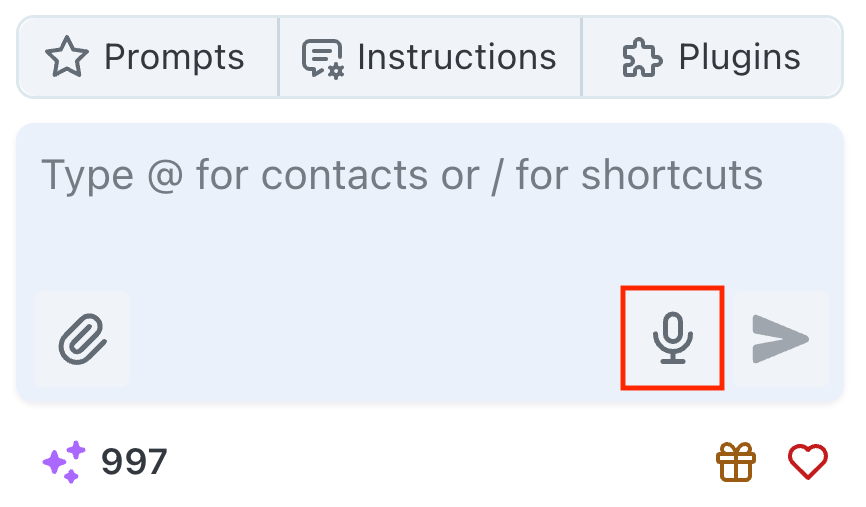 If it is your first time using voice messages, you will be prompted to allow Narada to access your microphone. Click "Allow" to proceed.
Clearly state your request or message.
If it is your first time using voice messages, you will be prompted to allow Narada to access your microphone. Click "Allow" to proceed.
Clearly state your request or message.
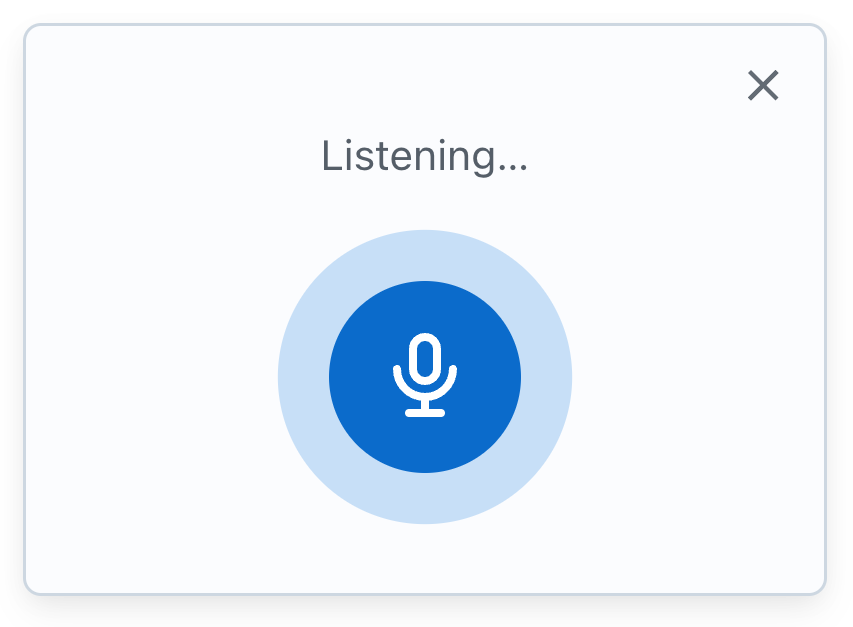 Examples of voice commands:
* "Schedule a meeting with the design team for next Monday at 10 AM"
* "What's on my calendar today?"
* "Send an email to John about the project update"
Narada will display the message it understood. Review the message, confirm it's correct, and send it!
Examples of voice commands:
* "Schedule a meeting with the design team for next Monday at 10 AM"
* "What's on my calendar today?"
* "Send an email to John about the project update"
Narada will display the message it understood. Review the message, confirm it's correct, and send it!
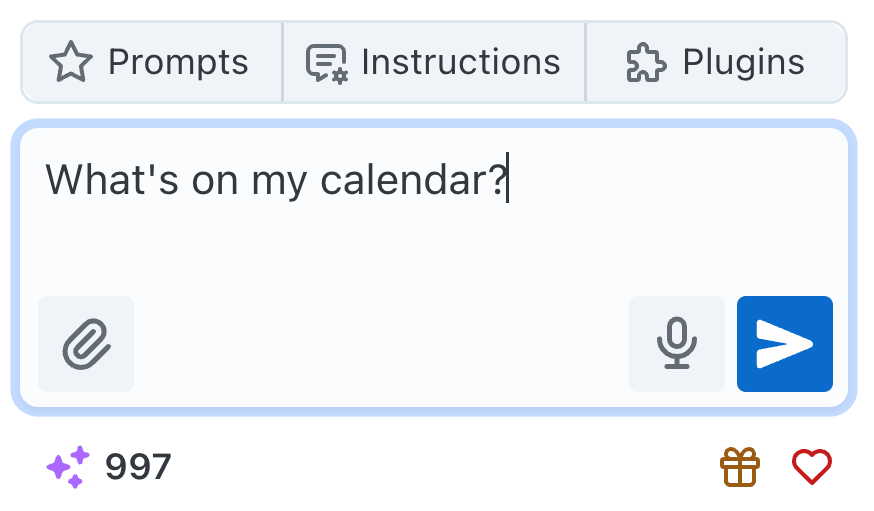 Your voice command will be processed and executed by Narada.
## Voice Command Examples
**Meeting and Calendar Commands**
```
"Schedule a meeting with the design team for next Monday at 10 AM"
```
```
"What meetings do I have tomorrow?"
```
```
"Block my calendar for 2 hours this afternoon"
```
**Email and Messaging**
```
"Send an email to Sarah about the quarterly review"
```
```
"Reply to John's message about the budget proposal"
```
```
"Search my emails for messages from the marketing team"
```
**Task and File Management**
```
"Create a new document called Project Proposal"
```
```
"Find the Q4 budget spreadsheet in Google Drive"
```
```
"Add a reminder to follow up on the client presentation"
```
## Benefits of Voice Messages
Continue working while giving commands to Narada without typing
Speak naturally as you would to a colleague or assistant
Ideal for users with mobility limitations or when typing isn't convenient
Execute commands while focusing on other tasks or activities
## FAQs and Troubleshooting
**Q: Can I use voice messages in any language?**
A: Narada's voice message capability currently supports English only. We're working on adding support for other languages.
**Q: What should I do if Narada doesn't understand my message?**
A: Speak clearly and directly into the microphone. Ensure there's minimal background noise. If the issue persists, try rephrasing your message or speaking more slowly.
**Q: Are voice messages as accurate as typing?**
A: Voice messages are generally very accurate, but this can depend on factors like accent, speech clarity, and background noise. In some cases, typing might be more precise or faster, but voice messages offer convenience and accessibility, especially for complex tasks or when you're unable to type.
**Q: How is my voice data handled?**
A: Voice messages are processed securely and are not stored after transcription. Narada prioritizes your privacy and data security in all voice interactions.
If your question isn't covered here, our support team at
[support@narada.ai](mailto:support@narada.ai) is always eager to help.
***
We hope this guide helps you effectively utilize Narada's voice message capabilities. If you have any further questions or need assistance, please reach out. Enjoy the ease and efficiency of hands-free interaction with Narada!
Your voice command will be processed and executed by Narada.
## Voice Command Examples
**Meeting and Calendar Commands**
```
"Schedule a meeting with the design team for next Monday at 10 AM"
```
```
"What meetings do I have tomorrow?"
```
```
"Block my calendar for 2 hours this afternoon"
```
**Email and Messaging**
```
"Send an email to Sarah about the quarterly review"
```
```
"Reply to John's message about the budget proposal"
```
```
"Search my emails for messages from the marketing team"
```
**Task and File Management**
```
"Create a new document called Project Proposal"
```
```
"Find the Q4 budget spreadsheet in Google Drive"
```
```
"Add a reminder to follow up on the client presentation"
```
## Benefits of Voice Messages
Continue working while giving commands to Narada without typing
Speak naturally as you would to a colleague or assistant
Ideal for users with mobility limitations or when typing isn't convenient
Execute commands while focusing on other tasks or activities
## FAQs and Troubleshooting
**Q: Can I use voice messages in any language?**
A: Narada's voice message capability currently supports English only. We're working on adding support for other languages.
**Q: What should I do if Narada doesn't understand my message?**
A: Speak clearly and directly into the microphone. Ensure there's minimal background noise. If the issue persists, try rephrasing your message or speaking more slowly.
**Q: Are voice messages as accurate as typing?**
A: Voice messages are generally very accurate, but this can depend on factors like accent, speech clarity, and background noise. In some cases, typing might be more precise or faster, but voice messages offer convenience and accessibility, especially for complex tasks or when you're unable to type.
**Q: How is my voice data handled?**
A: Voice messages are processed securely and are not stored after transcription. Narada prioritizes your privacy and data security in all voice interactions.
If your question isn't covered here, our support team at
[support@narada.ai](mailto:support@narada.ai) is always eager to help.
***
We hope this guide helps you effectively utilize Narada's voice message capabilities. If you have any further questions or need assistance, please reach out. Enjoy the ease and efficiency of hands-free interaction with Narada!