> ## Documentation Index
> Fetch the complete documentation index at: https://docs.narada.ai/llms.txt
> Use this file to discover all available pages before exploring further.

# Prompt Library

> Save and reuse your favorite prompts and commands

# Prompt Library

<Frame>
  <iframe className="w-full aspect-video rounded-xl" src="https://www.youtube.com/embed/QMIlQlKQX_I" title="Prompt Library with Narada" frameBorder="0" allow="accelerometer; autoplay; clipboard-write; encrypted-media; gyroscope; picture-in-picture" allowFullScreen />
</Frame>

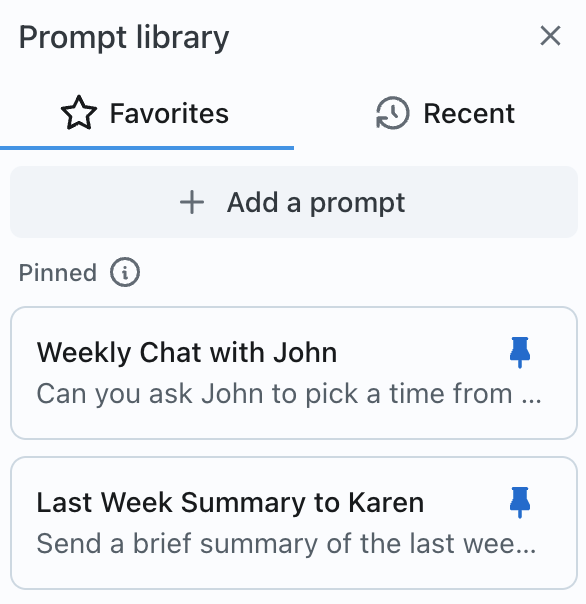
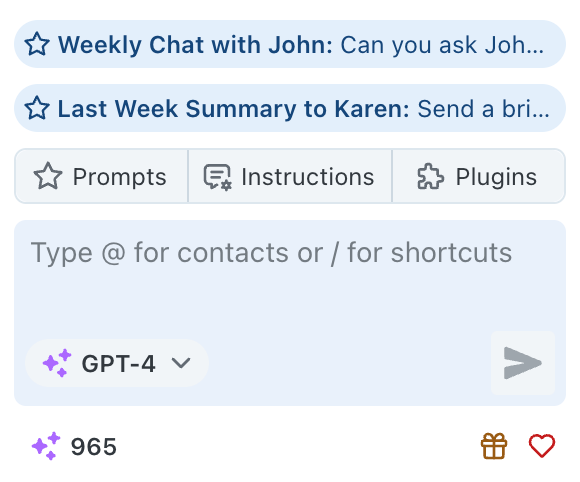
The **Prompt Library** is your own collection of prompts and commands that you might want to save and reuse. For repetitive tasks and actions, the prompt library will help you dispatch them with a button click or two. The list of saved prompts can be easily reordered, and the prompts at the top of the list are always visible and just a click away in the Narada sidebar.

## Saving Your Favorite Prompts

To keep a memorable or frequently used prompt within arm's reach:

<Steps>
  <Step title="Navigate to Your Prompt">
    Navigate to the prompt you want to save in your conversation history.
  </Step>

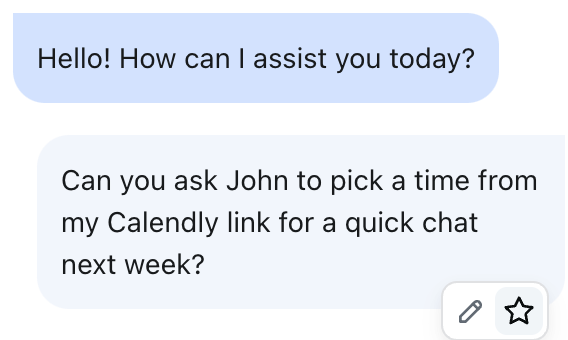
  <Step title="Click the Star Icon">
    Look for the star icon located on the bottom right corner of the prompt's box and click it.

    <Frame style={{ width: "50%", margin: "0 auto" }}>
      <img src="https://mintcdn.com/naradaai/V_hKSzoFuGmkr-Yj/images/prompt-add.png?fit=max&auto=format&n=V_hKSzoFuGmkr-Yj&q=85&s=4d5a4e053c7817f78e46e8acb13464a2" alt="Add prompt to library with star icon" width="568" height="340" data-path="images/prompt-add.png" />
    </Frame>
  </Step>

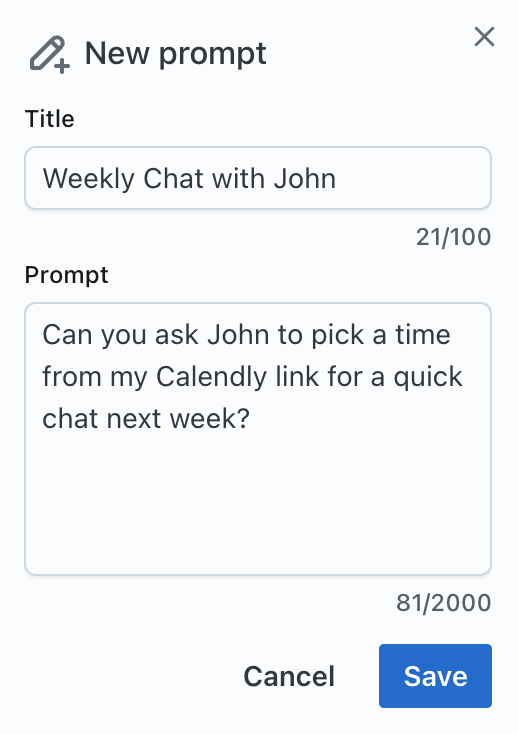
  <Step title="Give It a Title">
    Give a title to your prompt and hit "Save".

    <Frame style={{ width: "50%", margin: "0 auto" }}>
      <img src="https://mintcdn.com/naradaai/V_hKSzoFuGmkr-Yj/images/prompt-save.png?fit=max&auto=format&n=V_hKSzoFuGmkr-Yj&q=85&s=dcd21735ec6c5f62fe8fbdc993b9de08" alt="Save prompt with custom title" width="518" height="734" data-path="images/prompt-save.png" />
    </Frame>

    <Check>
      You've now successfully saved the prompt to your **Prompt Library**!
    </Check>
  </Step>
</Steps>

## Using Your Favorite Prompts

Accessing and using prompts from your library is a breeze:

<Tabs>
  <Tab title="Browse Library">
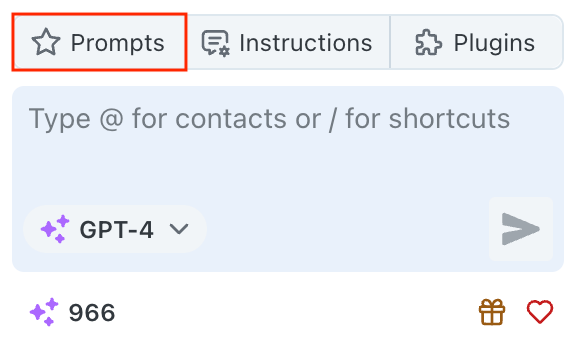
    **Open Your Library**

    1. Open your **Prompt Library** by navigating to the star icon

    <Frame style={{ width: "50%", margin: "0 auto" }}>
      <img src="https://mintcdn.com/naradaai/V_hKSzoFuGmkr-Yj/images/prompt-library.png?fit=max&auto=format&n=V_hKSzoFuGmkr-Yj&q=85&s=30a35c9f9449d03c022db9e850d3706f" alt="Open Prompt Library interface" width="574" height="344" data-path="images/prompt-library.png" />
    </Frame>

    2. Browse through your saved prompts

    <Frame style={{ width: "50%", margin: "0 auto" }}>
      <img src="https://mintcdn.com/naradaai/V_hKSzoFuGmkr-Yj/images/prompt-list.png?fit=max&auto=format&n=V_hKSzoFuGmkr-Yj&q=85&s=c2f1ad4967487a1a78c75a920a8741a1" alt="List of saved prompts in library" width="586" height="604" data-path="images/prompt-list.png" />
    </Frame>
  </Tab>

  <Tab title="Quick Actions">
    **Use Quick Action Chips**

    Use the quick action chip associated with each prompt for immediate application.

    <Frame style={{ width: "50%", margin: "0 auto" }}>
      <img src="https://mintcdn.com/naradaai/V_hKSzoFuGmkr-Yj/images/prompt-quick-chip.png?fit=max&auto=format&n=V_hKSzoFuGmkr-Yj&q=85&s=eb330290babd52ddf4adbe6149a2a0cd" alt="Quick action chips for prompts" width="580" height="482" data-path="images/prompt-quick-chip.png" />
    </Frame>
  </Tab>

  <Tab title="Recent Prompts">
    **Access Recent Prompts**

    You can also view your most recent prompts by clicking on the **Recent** tab in the Prompt Library.
  </Tab>
</Tabs>

## Managing Your Prompt Library

<CardGroup cols={2}>
  <Card title="Edit Prompts" icon="pencil">
    Modify saved prompts directly within the library to keep them current
  </Card>

  <Card title="Delete Prompts" icon="trash">
    Remove prompts you no longer need to declutter your library
  </Card>

  <Card title="Reorder Prompts" icon="arrows-up-down">
    Easily reorder your prompts to keep the most important ones at the top
  </Card>

  <Card title="Quick Access" icon="bolt">
    Access your top prompts directly from the Narada sidebar
  </Card>
</CardGroup>

<Warning>
  Be cautious when deleting prompts. Once deleted, they cannot be recovered.
</Warning>

## Example Prompts to Save

<AccordionGroup>
  <Accordion title="Meeting Scheduling">
    ```
    "Schedule a team standup meeting for every Monday at 9 AM"
    ```
  </Accordion>

  <Accordion title="Email Templates">
    ```
    "Send a follow-up email to the client about the project status update"
    ```
  </Accordion>

  <Accordion title="Research Tasks">
    ```
    "Search for the latest industry trends in renewable energy and summarize the key findings" 
    ```
  </Accordion>

  <Accordion title="File Management">
    ```
    "Create a new project folder in Google Drive and share it with the team"
    ```
  </Accordion>
</AccordionGroup>

<Note>
  Your Prompt Library becomes more valuable as you use it. Start by saving
  prompts you find yourself repeating, and gradually build a collection that
  speeds up your daily tasks.
</Note>

***

Thank you for exploring the **Prompt Library** feature. We hope this guide empowers you to make the most out of this tool, ensuring outputs that are tailored to your needs. Should you have any further questions or concerns, our support team is always here to help.