> ## Documentation Index
> Fetch the complete documentation index at: https://docs.narada.ai/llms.txt
> Use this file to discover all available pages before exploring further.
# Plugins
> Enable Narada to understand and interact with diverse applications and platforms
# Plugins
**Plugins** enable Narada to understand and interact with a diverse range of applications and platforms, expanding on Narada's core capabilities. By using plugins, Narada will leverage many of your personal tools, whenever applicable, to carry out the tasks you ask it to do.
## How to Use Narada Plugins
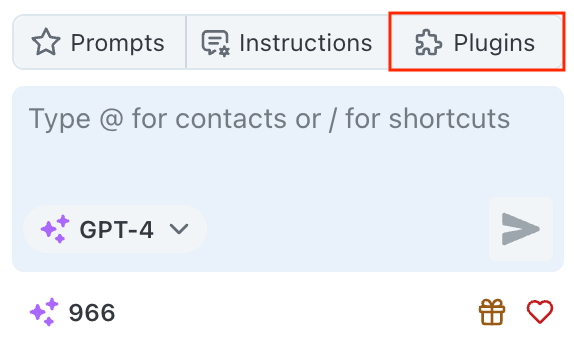
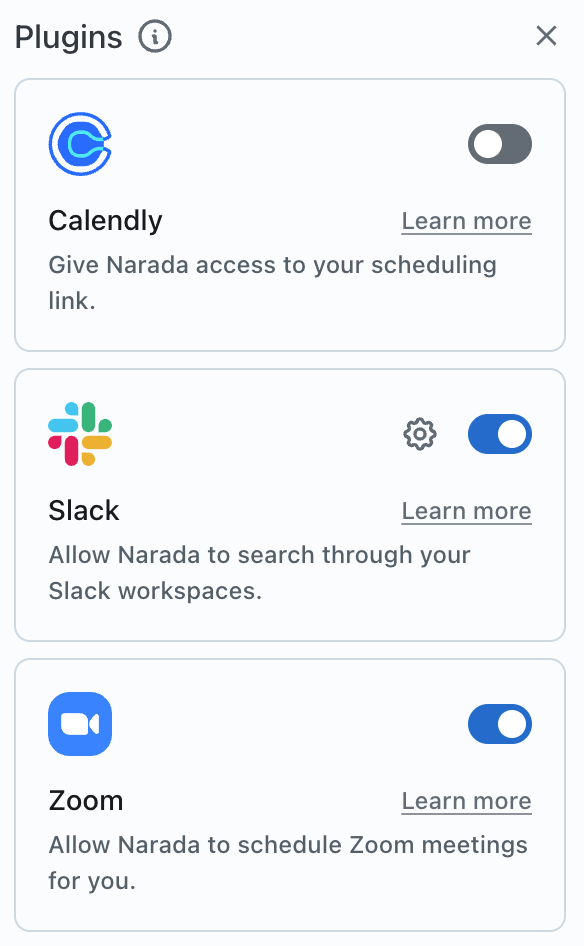
Navigate to the **Plugins** section from your Narada sidebar.
Browse through the list of available plugins to see what integrations are possible.
Enable the plugin you want to use by clicking on the toggle button next to it.
Follow any specific instructions to integrate the plugin with your account.
Each plugin will guide you through its specific setup process.
## Available Plugins
Schedule meetings, send invites, and join calls with one command
Gmail, Calendar, and Drive integration for seamless productivity
Search across workspaces and draft messages efficiently
Search contacts and deals with natural language commands
Access and manage your Salesforce data seamlessly
Real-time web search for current information and research
### Zoom Integration
Harness the power of Narada with Zoom for seamless meeting scheduling, organization, and more.
* Schedule Zoom meetings directly from Narada
* Automatically send invites and add to calendar
* Join meetings with one command
* Support for meeting titles and descriptions
1. Enable the Zoom plugin from the sidebar 2. Sign in to your Zoom account
through the integration 3. Use natural language commands like: - "Schedule a
Zoom meeting for Monday at 10 AM" - "Set up a Zoom call with the design team
for next Monday at 10 AM" - "Create a weekly Zoom meeting every Monday at 10
AM"
**Multiple Zoom accounts:** Narada uses the account you connect with. To switch accounts, disconnect the current one and connect the desired account.
**Recurring meetings:** Currently not supported for Zoom via Narada, but you can set up recurring Google Calendar meetings with your Zoom link.
### Google Workspace
Comprehensive integration with Gmail, Google Calendar, and Google Drive for seamless productivity.
* Compose, reply, and forward emails using natural language
* Search through your emails with specific criteria
* Attach files from Google Drive directly
* Schedule emails to be sent later
```
"Send an email to Sarah about the quarterly review"
"Search my emails for messages about the marketing campaign"
"Draft a follow-up email with the project proposal attached"
```
* Create and edit calendar invites with natural language
* Search for events by date range or keywords
* Check user availability across multiple time slots
* Set up recurring meetings and events
* Automatically schedule meetings with optimal times
```
"Schedule a meeting with Alex and Tina on July 15th at 3 PM for 60 minutes"
"Show me all my events for today"
"Am I available on September 21st between 2 PM and 3 PM?"
"Set up a weekly team meeting every Monday at 10 AM"
```
* Search for files by name, type, or content
* Share documents seamlessly with email attachments
* Access files across your entire Drive
* Organize and manage file permissions
```
"Find the quarterly report from last month"
"Share the presentation with team@company.com"
"Search for all PDFs related to the project proposal"
```
### Slack Integration
Search through multiple Slack workspaces and draft messages efficiently.
* Search across all your Slack workspaces simultaneously
* Find specific messages and conversations by keywords
* Workspace-specific searches for targeted results
* Access to message history and shared files
* Draft messages to users or channels - Review messages before sending -
Multi-workspace support for organizations - Integration with team
communication workflows
```
"Search Slack for 'budget discussions'"
"Draft a message to the #general channel"
"Search in [Workspace Name] for 'team meeting notes'"
"Draft a Slack message to John saying 'Let's catch up tomorrow at 3 PM'"
```
### HubSpot CRM Integration
Search contacts and deals in your HubSpot CRM with natural language commands.
* Search for contacts by name, email, or custom properties
* Access comprehensive contact information and history
* View contact engagement and interaction timeline
* Property-based search for targeted results
* Find deals by name or associated contact - Track deal status and pipeline
progression - Access deal details including value and close dates - Monitor
sales performance and engagement
```
"Search HubSpot contacts for John Doe"
"Find HubSpot deals with sarah@company.com"
"Search HubSpot contacts with the email john@example.com"
"Search HubSpot deals for Quentin's car"
```
Currently specialized in searching contacts and deals. Adding or modifying
entries will be supported in future updates.
### Salesforce Integration
Access and search your Salesforce data seamlessly with Narada's advanced web navigation.
* Search contacts, leads, and opportunities
* Access comprehensive account information
* Track sales pipeline and performance data
* Add call logs and activity records
* Create and modify contacts and accounts
* Powered by world-class web navigation algorithm - Real-time execution in
your Salesforce dashboard - Visual execution - watch Narada navigate for you -
Support for complex queries and modifications
```
"/Salesforce add call log with John Doe about product feedback"
"/Salesforce create new contact Jane Doe, email jane@example.com"
"/Salesforce search for annual sales report 2023"
"/Salesforce update contact John Smith with new phone number"
```
Use the `/Salesforce` shortcut followed by your command in natural language.
Narada will open a new Chrome tab and execute the command in your dashboard.
### Web Search Capabilities
Search the web for current information and data when you need information beyond your personal tools.
* Real-time web search results from multiple sources
* Automatic source selection and verification
* Synthesized answers from multiple web sources
* Current information and fact-checking capabilities
* Intelligent query routing (personal vs web data)
* Filters through web noise to find relevant information - Provides source
citations and links - Combines multiple sources for comprehensive answers -
Saves time by eliminating manual browsing
```
"What is the tallest mountain in the world?"
"Find the latest research on renewable energy sources"
"What are the current stock prices for tech companies?"
"Search for recent news about artificial intelligence developments"
```
Narada automatically determines when to use web search versus personal data
sources, so you don't need to specify the search method.
## Popular Use Cases
**Schedule and manage meetings across platforms:**
```text Zoom Meeting theme={null}
"Schedule a Zoom meeting with the design team for next Monday at 10 AM"
```
```text Calendar Check theme={null}
"What meetings do I have tomorrow?"
```
```text Time Blocking theme={null}
"Block my calendar for 2 hours this afternoon for focused work"
```
**Email and messaging workflows:**
```text Email Composition theme={null}
"Send an email to Sarah about the quarterly review with the latest report attached"
```
```text Slack Search theme={null}
"Search Slack for messages about the marketing campaign from last week"
```
```text Message Drafting theme={null}
"Draft a follow-up email to the client with the project proposal"
```
**CRM and business data:**
```text HubSpot Search theme={null}
"Find all deals in HubSpot associated with Acme Corp"
```
```text Salesforce Query theme={null}
"Search Salesforce for contacts in the technology industry"
```
```text Contact Information theme={null}
"Get the contact information and recent activity for our biggest client"
```
**Information gathering:**
```text Market Research theme={null}
"Search the web for current cryptocurrency trends and market analysis"
```
```text Industry News theme={null}
"Find the latest industry news about artificial intelligence and machine learning"
```
```text Financial Data theme={null}
"What are the current stock prices and performance for major tech companies?"
```
## Best Practices
Use specific, detailed commands with dates, names, and relevant context for better results
Provide context like timeframes, specific people, and relevant details to
improve accuracy
Test each plugin after enabling to ensure proper functionality and permissions
Keep your connected accounts and permissions up to date for optimal performance
## Support & Troubleshooting
**Authentication Problems:** Most issues are resolved by re-authenticating or checking account permissions in the plugin settings.
**Search Results:** If you can't find what you're looking for, try refining your query with more specific details or different keywords.
**Plugin Not Responding:** Ensure you're connected to the internet and your account permissions are up to date.
For more in-depth support or specific plugin issues:
* Check plugin-specific settings and permissions
* Review the integration setup steps
* Contact our support team at [support@narada.ai](mailto:support@narada.ai)
* Join our community for tips and best practices
Always verify important information, especially when dealing with sensitive
business data or making significant changes through plugin integrations.