> ## Documentation Index
> Fetch the complete documentation index at: https://docs.narada.ai/llms.txt
> Use this file to discover all available pages before exploring further.
# Morning Brief Emails
> Get daily briefings about your meetings with external attendees
# Morning Brief Emails with Narada
**Morning Brief Emails** feature is designed to enhance your meeting readiness by providing enriched information about the external attendees of your meetings. Get a head start on your day with detailed insights every morning!
## Overview
The Morning Brief Email feature is your daily briefing tool that arrives at 5 AM, tailored to optimize your readiness for meetings with external attendees. It sifts through your calendar to identify meetings that include participants from outside your organization and compiles vital information to help you navigate the day's discussions effectively.
## How It Works
**Every Morning at 5 AM**
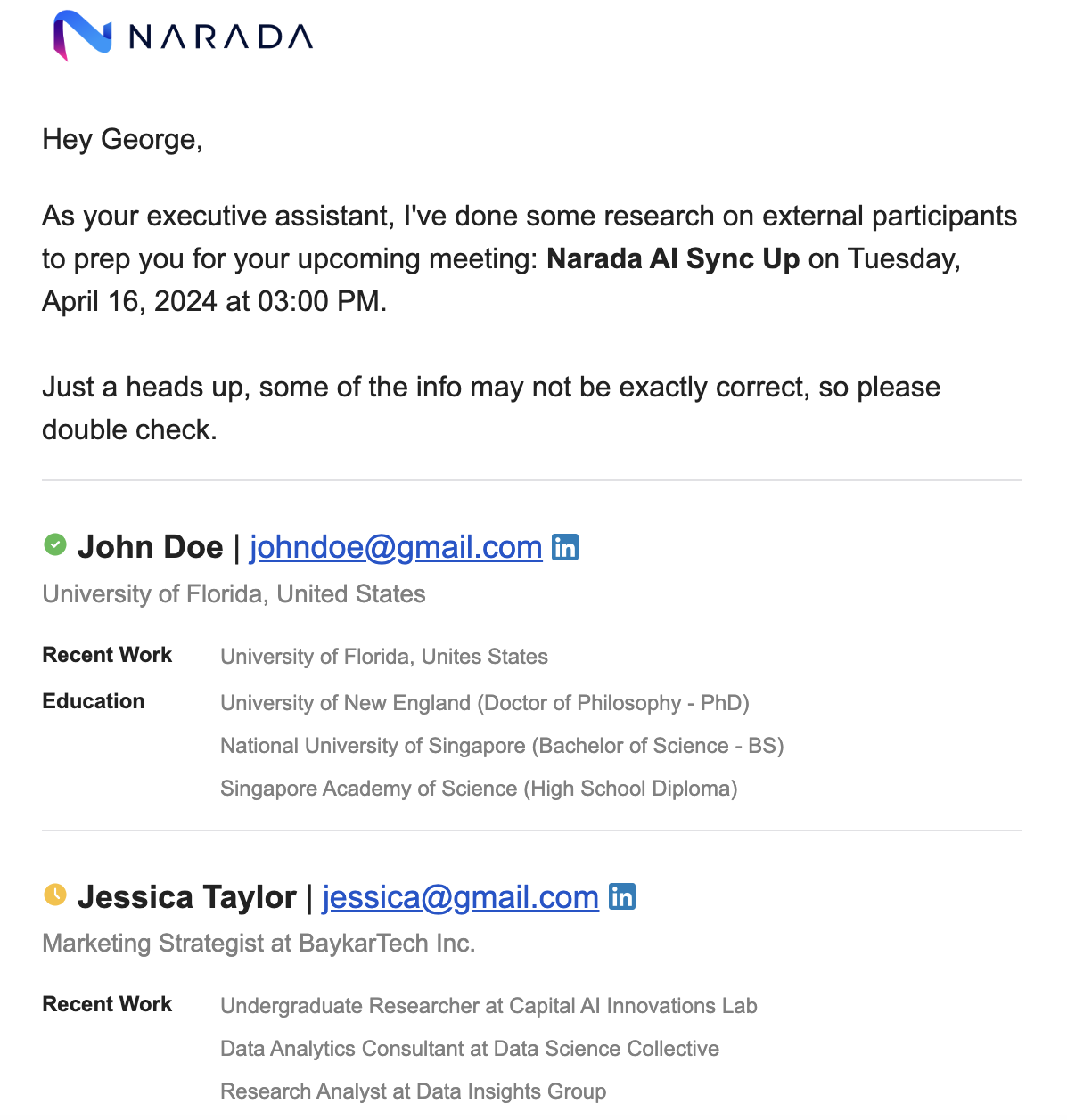
Narada sends you an email containing:
* A list of all meetings scheduled for the day with external attendees
* RSVP status for each attendee
* Background information where available
You'll receive your briefing automatically without any setup required.
**Comprehensive Details**
The email includes:
* Meeting times and participant names
* Professional details of attendees
* Work history and educational background
* LinkedIn profiles where available
 ## Features and Benefits
Get to know who you will be meeting with background information to tailor your approach
Understand availability and confirmation status of your attendees
Direct links to view meeting details in Narada for additional information
Work history, education, and LinkedIn profiles help you prepare conversation topics
## Viewing Meetings in Narada
To view detailed information about any meeting:
Click on the "View meeting in Narada" link provided in your morning brief email.
## Features and Benefits
Get to know who you will be meeting with background information to tailor your approach
Understand availability and confirmation status of your attendees
Direct links to view meeting details in Narada for additional information
Work history, education, and LinkedIn profiles help you prepare conversation topics
## Viewing Meetings in Narada
To view detailed information about any meeting:
Click on the "View meeting in Narada" link provided in your morning brief email.
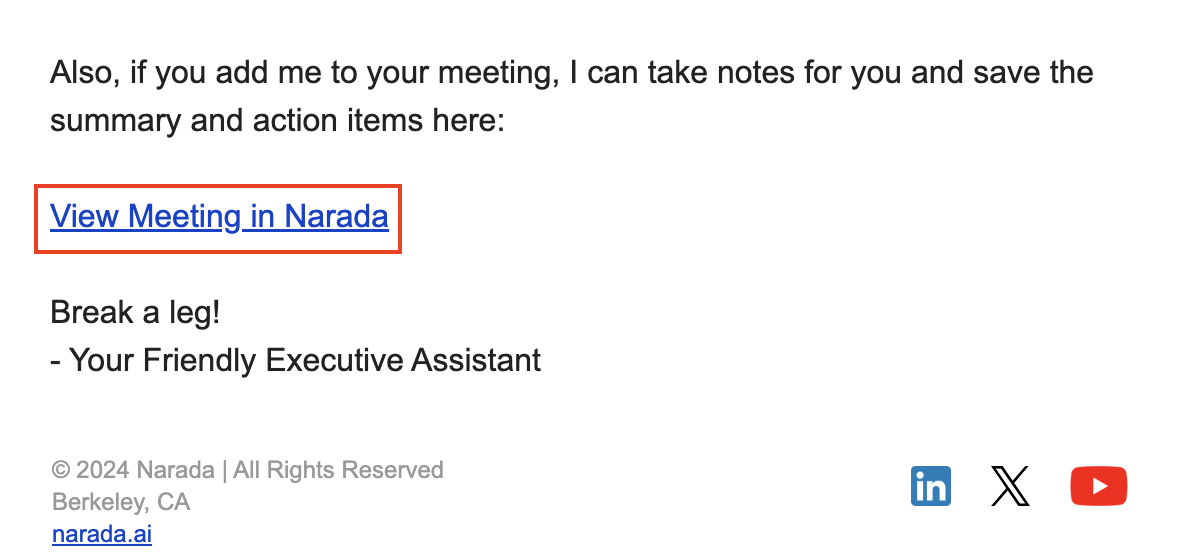 This will direct you to the Narada app where you can see complete details
about your meetings.
After the meeting, return to Narada to see:
* Summary of the meeting
* Action items
* Full transcript
## What's Included in Your Brief
**Meeting Details**
* Meeting time and duration
* List of external attendees
* RSVP status for each participant
* Meeting location or video call details
**Background Information**
* Professional work history
* Educational background
* Current role and company
* LinkedIn profile links
* Previous interactions (if any)
**Meeting Context**
* Suggested conversation starters
* Relevant company or industry information
* Meeting agenda if available
* Previous meeting notes or context
## FAQs and Troubleshooting
**Q: What if I don't receive my morning brief email at 5 AM?**
A: Check your spam folder to ensure the emails aren't being redirected. If the problem persists, verify your settings in Narada to ensure email notifications are enabled.
**Q: How accurate is the background information provided about attendees?**
A: Narada tries to gather information from publicly available sources to prepare you for the meeting with information such as the work history or education history of each external participant. While we strive for accuracy, sometimes Narada may find inaccurate information.
**Q: Is the attendee information gathering compliant with privacy regulations?**
A: Yes, Narada only uses publicly available information and respects privacy settings. No private or confidential information is accessed.
**Q: Can I customize what information is included in my morning brief?**
A: Currently, the morning brief includes a standard set of helpful information. Customization options may be available in future updates.
If your question isn't covered here, our support team at
[support@narada.ai](mailto:support@narada.ai) is always eager to help.
***
This Morning Brief Email feature is designed to significantly enhance how you prepare for your interactions, making every meeting more productive and informed. Should you have any further questions or need assistance, our support team is readily available. Prepare to transform your meeting experience with Narada!
This will direct you to the Narada app where you can see complete details
about your meetings.
After the meeting, return to Narada to see:
* Summary of the meeting
* Action items
* Full transcript
## What's Included in Your Brief
**Meeting Details**
* Meeting time and duration
* List of external attendees
* RSVP status for each participant
* Meeting location or video call details
**Background Information**
* Professional work history
* Educational background
* Current role and company
* LinkedIn profile links
* Previous interactions (if any)
**Meeting Context**
* Suggested conversation starters
* Relevant company or industry information
* Meeting agenda if available
* Previous meeting notes or context
## FAQs and Troubleshooting
**Q: What if I don't receive my morning brief email at 5 AM?**
A: Check your spam folder to ensure the emails aren't being redirected. If the problem persists, verify your settings in Narada to ensure email notifications are enabled.
**Q: How accurate is the background information provided about attendees?**
A: Narada tries to gather information from publicly available sources to prepare you for the meeting with information such as the work history or education history of each external participant. While we strive for accuracy, sometimes Narada may find inaccurate information.
**Q: Is the attendee information gathering compliant with privacy regulations?**
A: Yes, Narada only uses publicly available information and respects privacy settings. No private or confidential information is accessed.
**Q: Can I customize what information is included in my morning brief?**
A: Currently, the morning brief includes a standard set of helpful information. Customization options may be available in future updates.
If your question isn't covered here, our support team at
[support@narada.ai](mailto:support@narada.ai) is always eager to help.
***
This Morning Brief Email feature is designed to significantly enhance how you prepare for your interactions, making every meeting more productive and informed. Should you have any further questions or need assistance, our support team is readily available. Prepare to transform your meeting experience with Narada!