> ## Documentation Index
> Fetch the complete documentation index at: https://docs.narada.ai/llms.txt
> Use this file to discover all available pages before exploring further.
# Imitation Learning
> Record your browser actions and narration to automatically generate custom agents
## What is Imitation Learning?
Imitation Learning lets you **show** Narada how to do something by recording your browser actions while narrating what you're doing. Narada watches your actions, listens to your narration, and automatically generates a reusable agent workflow.
Think of it as screen recording meets AI. You demonstrate a task once, and Narada creates an agent that can repeat it.
## How It Works
Perform the task in your browser while narrating what you're doing. Narada captures your clicks, typing, navigation, screenshots, and audio.
Your narration is transcribed, actions are analyzed, and element selectors are validated for robustness.
Narada generates a complete agent workflow from your recording that can be reviewed, edited, and reused.
## Getting Started
### Starting a Recording
You can start an Imitation Learning recording from the **Agent Studio**:
Navigate to the **Agent Studio** from the Narada sidebar.
Click the **+ Create** button to open the creation dialog.
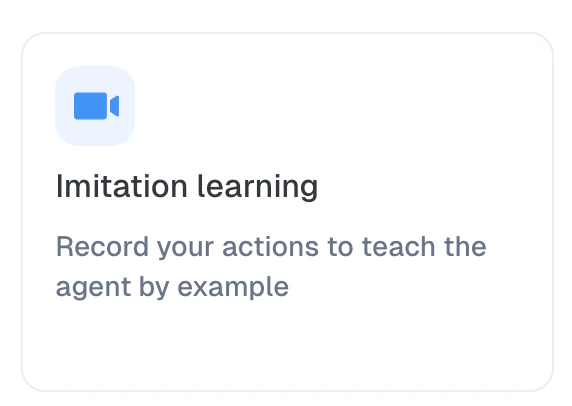
Choose **Imitation learning** from the options. The description reads: "Record your actions to teach the agent by example."
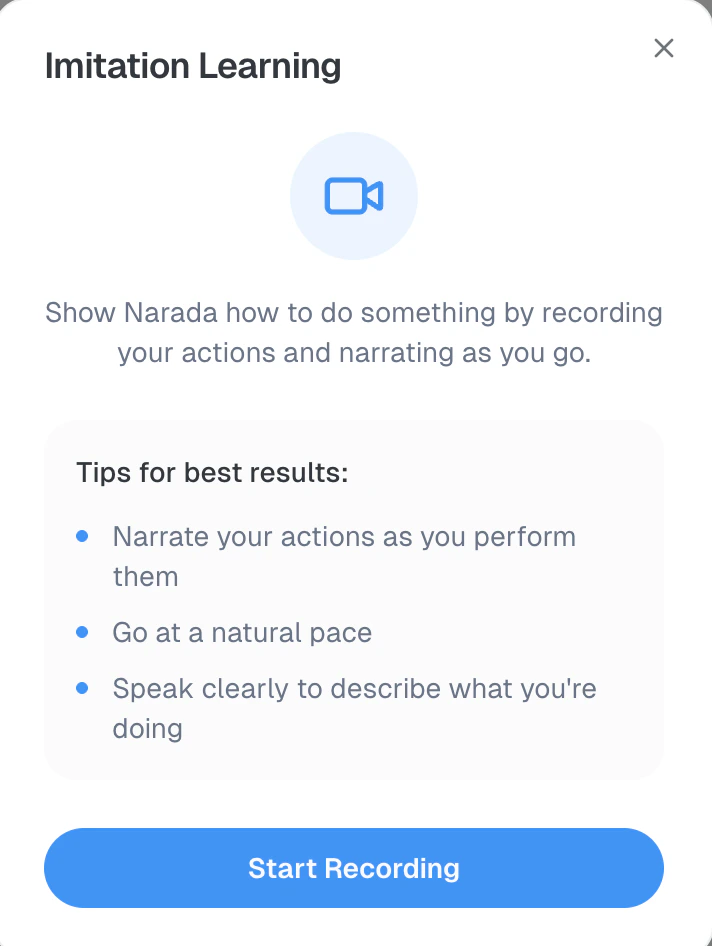
 You'll see an intro screen with tips for best results:
* **Narrate your actions** as you perform them
* **Go at a natural pace**
* **Speak clearly** to describe what you're doing
Click **Start Recording** when you're ready.
You'll see an intro screen with tips for best results:
* **Narrate your actions** as you perform them
* **Go at a natural pace**
* **Speak clearly** to describe what you're doing
Click **Start Recording** when you're ready.
 The Narada Chrome Extension must be installed for Imitation Learning to work. If it's not installed, you'll be prompted to install it.
### During Recording
Once recording starts, you'll see a recording interface in the Narada side panel:
The Narada Chrome Extension must be installed for Imitation Learning to work. If it's not installed, you'll be prompted to install it.
### During Recording
Once recording starts, you'll see a recording interface in the Narada side panel:
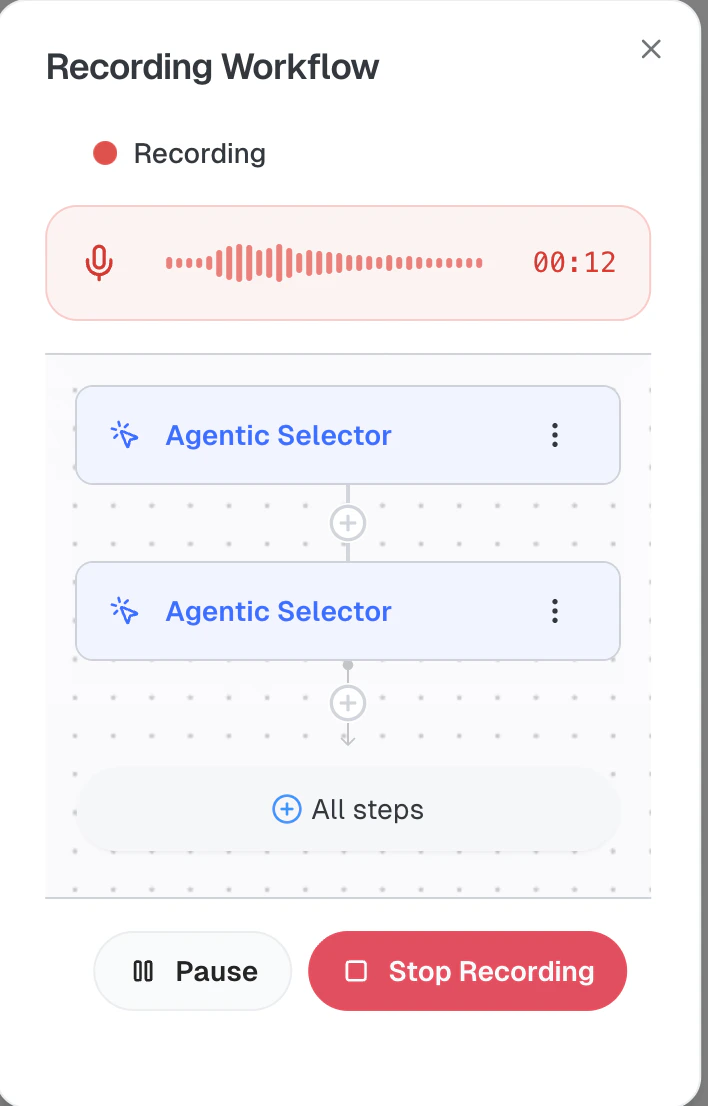 * A **red pulsing indicator** shows that recording is active
* A **timer** tracks elapsed time (MM:SS format)
* An **audio waveform** visualizes your microphone input in real-time
* A **live workflow editor** shows captured steps as they're detected
**Controls available during recording:**
| Button | Action |
| ------------------ | ---------------------------------------------------- |
| **Pause** | Temporarily pause recording (indicator turns yellow) |
| **Resume** | Continue recording after a pause |
| **Stop Recording** | End the recording and start processing |
Recordings have a maximum duration of **5 minutes**. If you reach the limit, the recording will automatically stop and begin processing.
### What Gets Captured
During your recording, Narada captures:
Clicks, text input, keyboard events (Tab, Enter, Escape), and page navigation
Your voice narration is transcribed with timestamps for each segment
Visual snapshots of the page at key moments during your workflow
HTML snapshots and element selectors for robust action replay
### After Recording
When you click **Stop Recording**, Narada processes your recording through several stages:
Element selectors are validated and filtered for robustness. You'll see progress: "Filtering X/Y selectors..."
Your narration is transcribed into text with segment-level timestamps.
Narada analyzes the recording context (actions, narration, screenshots, and page structure) to generate a complete agent workflow. This usually takes a few minutes.
* A **red pulsing indicator** shows that recording is active
* A **timer** tracks elapsed time (MM:SS format)
* An **audio waveform** visualizes your microphone input in real-time
* A **live workflow editor** shows captured steps as they're detected
**Controls available during recording:**
| Button | Action |
| ------------------ | ---------------------------------------------------- |
| **Pause** | Temporarily pause recording (indicator turns yellow) |
| **Resume** | Continue recording after a pause |
| **Stop Recording** | End the recording and start processing |
Recordings have a maximum duration of **5 minutes**. If you reach the limit, the recording will automatically stop and begin processing.
### What Gets Captured
During your recording, Narada captures:
Clicks, text input, keyboard events (Tab, Enter, Escape), and page navigation
Your voice narration is transcribed with timestamps for each segment
Visual snapshots of the page at key moments during your workflow
HTML snapshots and element selectors for robust action replay
### After Recording
When you click **Stop Recording**, Narada processes your recording through several stages:
Element selectors are validated and filtered for robustness. You'll see progress: "Filtering X/Y selectors..."
Your narration is transcribed into text with segment-level timestamps.
Narada analyzes the recording context (actions, narration, screenshots, and page structure) to generate a complete agent workflow. This usually takes a few minutes.
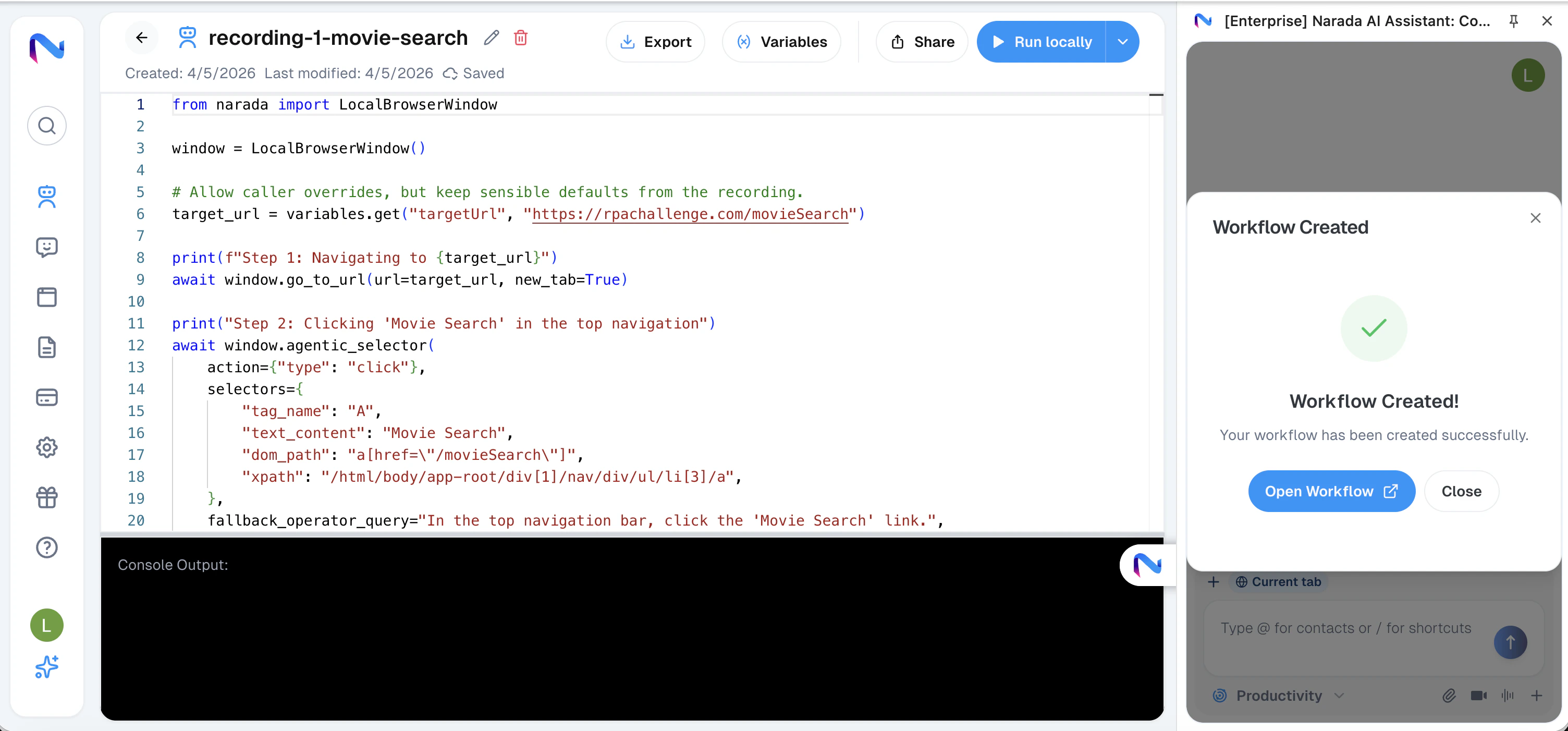
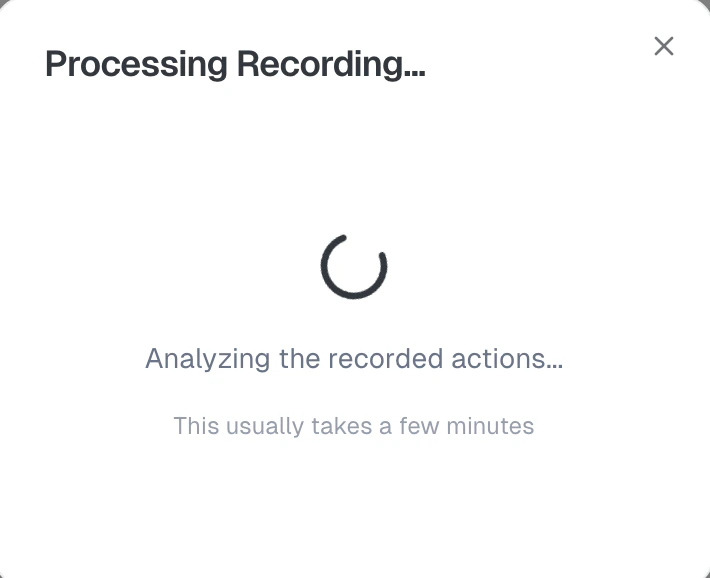 Once generation is complete, you'll see a success screen with an **Open Workflow** button. Click it to review and edit the generated workflow in the Agent Studio.
 ## Editing the Generated Workflow
The generated workflow opens in the Agent Studio editor where you can:
* **Review each step** to verify it matches your intent
* **Edit step instructions** to refine the automation
* **Add or remove steps** to customize the workflow
* **Test the workflow** by running it directly
The generated workflow uses robust element selectors with Operator agent fallback, so it can adapt to minor UI changes on the target website.
## Tips for Best Results
Describe what you're doing and **why** as you perform each action. The narration helps Narada understand your intent, not just the mechanics.
Don't rush through actions. Give Narada time to capture each step properly.
Record one specific workflow per session. Complex multi-part tasks are better split into separate recordings.
Ensure pages are fully loaded before interacting with them. Avoid recording during loading spinners.
## Troubleshooting
* Ensure the Narada Chrome Extension is installed and you're signed in
* Check that your browser has microphone permissions enabled for Narada
* Try refreshing the page and starting again
* Make sure you narrated clearly during recording. Narration significantly improves generation quality
* Try recording at a slower pace
* You can always edit the generated workflow in Agent Studio to fix specific steps
* Check your browser's microphone permissions
* Ensure your microphone is not muted at the OS level
* Try a different microphone if available
## Editing the Generated Workflow
The generated workflow opens in the Agent Studio editor where you can:
* **Review each step** to verify it matches your intent
* **Edit step instructions** to refine the automation
* **Add or remove steps** to customize the workflow
* **Test the workflow** by running it directly
The generated workflow uses robust element selectors with Operator agent fallback, so it can adapt to minor UI changes on the target website.
## Tips for Best Results
Describe what you're doing and **why** as you perform each action. The narration helps Narada understand your intent, not just the mechanics.
Don't rush through actions. Give Narada time to capture each step properly.
Record one specific workflow per session. Complex multi-part tasks are better split into separate recordings.
Ensure pages are fully loaded before interacting with them. Avoid recording during loading spinners.
## Troubleshooting
* Ensure the Narada Chrome Extension is installed and you're signed in
* Check that your browser has microphone permissions enabled for Narada
* Try refreshing the page and starting again
* Make sure you narrated clearly during recording. Narration significantly improves generation quality
* Try recording at a slower pace
* You can always edit the generated workflow in Agent Studio to fix specific steps
* Check your browser's microphone permissions
* Ensure your microphone is not muted at the OS level
* Try a different microphone if available