> ## Documentation Index
> Fetch the complete documentation index at: https://docs.narada.ai/llms.txt
> Use this file to discover all available pages before exploring further.
# Custom Instructions
> Provide personal preferences and instructions for Narada to follow
# Custom Instructions
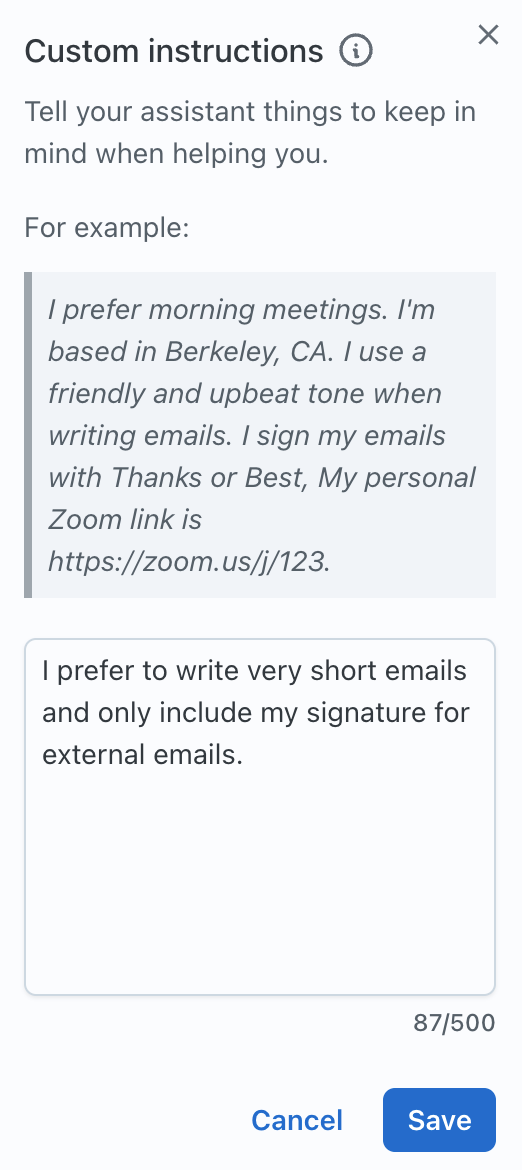
**Custom Instructions** allow users to provide personal preferences or general instructions that Narada takes into account in all of its actions. Tell Narada a little bit about how you do things and Narada will produce results that are quickly tailored to your needs!
## Creating Your Custom Instruction
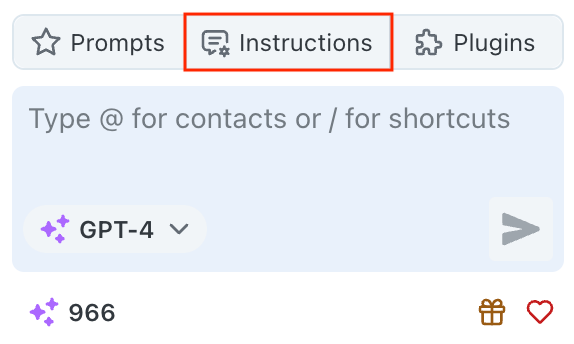
Open your **Custom Instructions** by navigating to the chat icon at the bottom of your Narada interface.
Tell Narada things to keep in mind when helping you. Be specific about your preferences, work style, and common requirements.
Save your custom instructions to have Narada apply them to all future interactions.
Your custom instructions will now influence all of Narada's responses and actions.
## Example Custom Instructions
**Professional Settings**
```
I prefer morning meetings. I'm based in Berkeley, CA.
My Zoom link is https://zoom.us/j/123.
I work in Pacific Time and prefer concise communication.
```
**Personal Style**
```
I prefer bullet points over long paragraphs.
Always include action items at the end of meeting summaries.
Use professional tone for external communications.
```
**Tools and Platforms**
```
I use Google Workspace for all documents.
Prefer Slack for team communications.
Save all meeting recordings to my "Meetings" folder in Drive.
```
Remember the 200-character limit! Focus on the most important preferences that
will have the biggest impact on your daily interactions with Narada.
## Best Practices
Put all essential information in a few structured sentences
Iterate on your instructions to get optimal results
Update your instructions as your preferences change
Include specific examples of how you want things done
## What to Include in Custom Instructions
* Your time zone and location
* Preferred meeting times
* Working hours and availability
* Holiday schedules or time off
* Preferred communication style (formal, casual, concise) - How you like
information presented (bullet points, paragraphs) - Tone preferences for
different types of communications - Language or terminology preferences
* Preferred productivity tools (Google Workspace, Microsoft 365) -
Communication platforms (Slack, Teams, Email) - File storage preferences -
Meeting platforms and personal links
* How you like meetings summarized
* Action item formatting preferences
* Document organization preferences
* Follow-up preferences
## Examples of Effective Instructions
**Well-Rounded Instructions**
```
Pacific Time, prefer 9-11 AM meetings. Use Google Drive for files,
Slack for team chat. Format action items as numbered lists.
Based in San Francisco.
```
**Manager Focus**
```
Always include next steps in meeting summaries.
Prefer weekly 1:1s on Tuesdays. Copy team@company.com
on project updates. Keep emails concise.
```
**Developer Preferences**
```
Save code reviews to GitHub. Prefer async communication.
Working hours 10 AM - 6 PM PST. Use Jira for tracking.
Technical docs in Confluence.
```
***
Thank you for diving into the **Custom Instructions** feature documentation. We hope this guide empowers you to make the most out of this tool, ensuring outputs that are tailored to your needs. Should you have any further questions or concerns, our support team is always here to help.