> ## Documentation Index
> Fetch the complete documentation index at: https://docs.narada.ai/llms.txt
> Use this file to discover all available pages before exploring further.
# Cloud Browser Sessions
> Run browser automation tasks in serverless cloud browsers without a local Chrome installation
## What are Cloud Browser Sessions?
Cloud Browser Sessions let you run Narada automation tasks in **serverless, cloud-hosted browsers** without a local Chrome installation or Narada extension. This is ideal for server-side automation, CI/CD pipelines, and running tasks at scale.
Run tasks from any server or script without a desktop browser
Spin up multiple cloud browsers in parallel for high-throughput automation
Sessions stay alive until you close them or they time out
## Getting Started with the SDK
Use `CloudBrowserEnvironment` to create a hosted browser session, then bind an `Agent` to that environment:
```python theme={null}
import asyncio
from narada import Agent, CloudBrowserEnvironment
async def main() -> None:
env = CloudBrowserEnvironment(
session_name="my-research-session",
session_timeout=3600,
)
agent = Agent(environment=env)
try:
response = await agent.run(
prompt=(
'Search for "LLM Compiler" on Google and open the first arXiv paper '
"on the results page, then tell me who the authors are."
)
)
print("Response:", response.text)
print("Session ID:", env.cloud_browser_session_id)
print("Window ID:", env.browser_window_id)
finally:
await env.close()
if __name__ == "__main__":
asyncio.run(main())
```
`Agent.run()`, `go_to_url()`, `get_screenshot()`, structured output, GIF recording, MCP servers, and input variables work the same way on cloud browser environments as they do on local browser environments.
## Session Lifecycle
Cloud browser sessions have a different lifecycle than local browser windows:
Construct `CloudBrowserEnvironment(session_name=..., session_timeout=...)`.
Create `Agent(environment=env)` and call `agent.run()`, `agent.go_to_url()`, `agent.get_screenshot()`, or other agent methods.
After the environment initializes, read `env.cloud_browser_session_id` and `env.browser_window_id` if you need to reconnect later.
Use `RemoteBrowserEnvironment` with the saved IDs to reconnect to a running cloud browser session.
Call `await env.close()` when you're done. If you reconnect with `RemoteBrowserEnvironment`, calling `close()` on that environment stops the cloud session.
**Cost Warning**: Cloud browser sessions accrue costs until they are stopped or time out. Always close sessions when you're done to avoid unexpected charges.
## Reconnect to a Cloud Session
Save the session identifiers after creating a cloud browser:
```python theme={null}
env = CloudBrowserEnvironment(session_name="data-extraction")
agent = Agent(environment=env)
await env.start()
session_id = env.cloud_browser_session_id
window_id = env.browser_window_id
print(f"Session: {session_id}, Window: {window_id}")
await agent.run(prompt="Navigate to example.com and extract the main heading")
# Intentionally leave the cloud session running so you can reconnect later.
# Call env.close() after the final reconnecting script is done.
```
Reconnect later with `RemoteBrowserEnvironment`:
```python theme={null}
import asyncio
from narada import Agent, RemoteBrowserEnvironment
async def main() -> None:
env = RemoteBrowserEnvironment(
browser_window_id="saved-browser-window-id",
cloud_browser_session_id="saved-cloud-session-id",
)
agent = Agent(environment=env)
try:
response = await agent.run(prompt="What page am I currently on?")
print(response.text)
finally:
await env.close()
if __name__ == "__main__":
asyncio.run(main())
```
Closing a `RemoteBrowserEnvironment` with `cloud_browser_session_id` stops the backing cloud session.
## Download Files from a Session
Use `get_downloaded_files()` on a cloud-backed environment:
```python theme={null}
downloaded_files = await env.get_downloaded_files()
for item in downloaded_files:
print(item.file_name, item.size, item.download_url)
```
## Using Cloud Browsers via the REST API
You can also use cloud browsers through the [Remote Dispatch API](/api-reference/remote-dispatch) by setting `executionMode` to `"cloud_browser"`:
```bash theme={null}
curl -X POST 'https://api.narada.ai/fast/v2/remote-dispatch' \
-H 'Content-Type: application/json' \
-H 'x-api-key: YOUR_API_KEY' \
-d '{
"prompt": "/Operator navigate to example.com and extract the heading",
"executionMode": "cloud_browser",
"cloudBrowserSessionName": "my-api-session"
}'
```
When using `executionMode: "cloud_browser"`, you do **not** need to provide a `browserWindowId`. A fresh cloud browser session is created automatically.
## Execution Modes Compared
The Remote Dispatch API supports three execution modes:
| Mode | Description | Requires Extension? | Requires browserWindowId? |
| ----------------- | ------------------------------------------------- | ------------------- | ------------------------- |
| `"client"` | Runs in a local browser with the Narada extension | Yes | Yes |
| `"cloud"` | Runs server-side without a browser | No | No |
| `"cloud_browser"` | Creates a cloud-hosted browser session | No | No |
## Managing Sessions in the Dashboard
You can view and manage your cloud browser sessions from the Narada web dashboard:
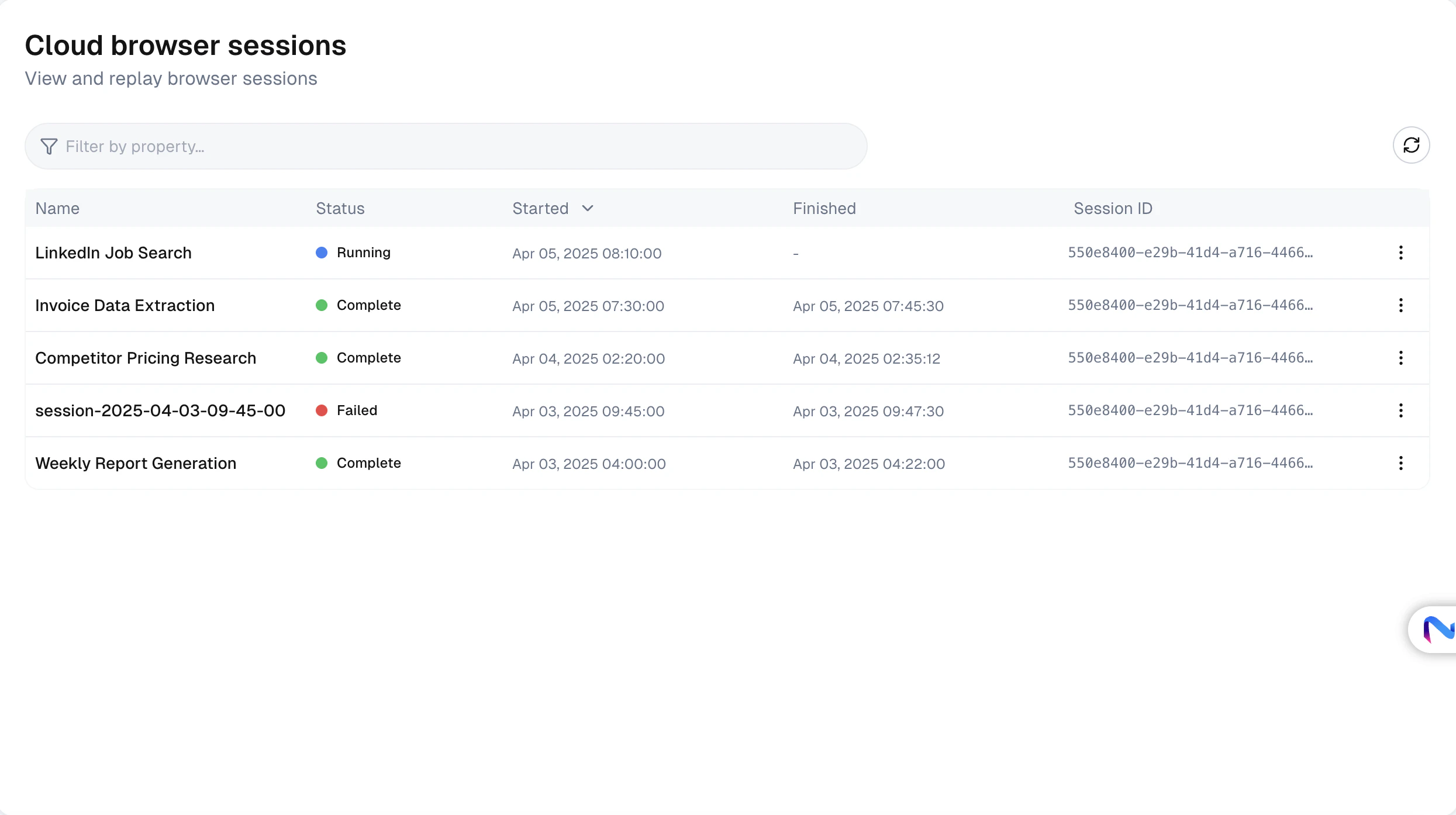 * **View active sessions** with their status, name, and creation time
* **Watch live sessions** via the session player
* **Replay completed sessions** to review what the agent did
* **Download action traces** as JSON for debugging
* **Download files** that were saved during the session
* **Stop sessions** that are no longer needed
## Best Practices
Call `await env.close()` when done to stop billing. Do not rely only on timeout.
Use `session_timeout` to auto-expire sessions you might forget to close manually.
Use `session_name` to label sessions so you can identify them in the dashboard.
Cloud browsers are suited for automated pipelines with no desktop browser or extension.
## Troubleshooting
* Verify your API key is valid and has sufficient credits
* Check your internet connection
* Contact support if the issue persists
* Increase `session_timeout` when creating the session
* Ensure your tasks complete within the timeout window
* For long-running tasks, break them into smaller steps
* Verify the session has not been stopped or timed out
* Check that you're using the correct `cloud_browser_session_id` and `browser_window_id`
* Sessions that have expired cannot be reconnected
* **View active sessions** with their status, name, and creation time
* **Watch live sessions** via the session player
* **Replay completed sessions** to review what the agent did
* **Download action traces** as JSON for debugging
* **Download files** that were saved during the session
* **Stop sessions** that are no longer needed
## Best Practices
Call `await env.close()` when done to stop billing. Do not rely only on timeout.
Use `session_timeout` to auto-expire sessions you might forget to close manually.
Use `session_name` to label sessions so you can identify them in the dashboard.
Cloud browsers are suited for automated pipelines with no desktop browser or extension.
## Troubleshooting
* Verify your API key is valid and has sufficient credits
* Check your internet connection
* Contact support if the issue persists
* Increase `session_timeout` when creating the session
* Ensure your tasks complete within the timeout window
* For long-running tasks, break them into smaller steps
* Verify the session has not been stopped or timed out
* Check that you're using the correct `cloud_browser_session_id` and `browser_window_id`
* Sessions that have expired cannot be reconnected