> ## Documentation Index
> Fetch the complete documentation index at: https://docs.narada.ai/llms.txt
> Use this file to discover all available pages before exploring further.
# Agent Maker
> Generate custom agents from natural language goal descriptions
## What is Agent Maker?
Agent Maker lets you create a custom agent by simply **describing what you want it to do** in natural language. Narada's AI generates a complete, runnable Python agent from your description, no coding or manual workflow building required.
Describe a goal like "Create an agent that checks website carbon footprint and generates a report" and Agent Maker builds the entire automation for you.
## Two Ways to Use Agent Maker
### Option 1: From the Chat
Type `/agentMaker` followed by your goal description directly in the Narada chat:
```
/agentMaker Create an agent that researches token pricing for OpenAI and Anthropic models
```
Narada will begin generating your agent immediately in the chat. The agent is created, tested, and opened for you automatically.
The `/agentMaker` command is case-insensitive. `/agentmaker`, `/AgentMaker`, and `/AGENTMAKER` all work.
### Option 2: From Agent Studio
Navigate to the **Agent Studio** from the Narada sidebar.
Click the **+ Create** button to open the creation dialog.
Choose **Agent Maker** from the options. The description reads: "Build an agent from your goal description."
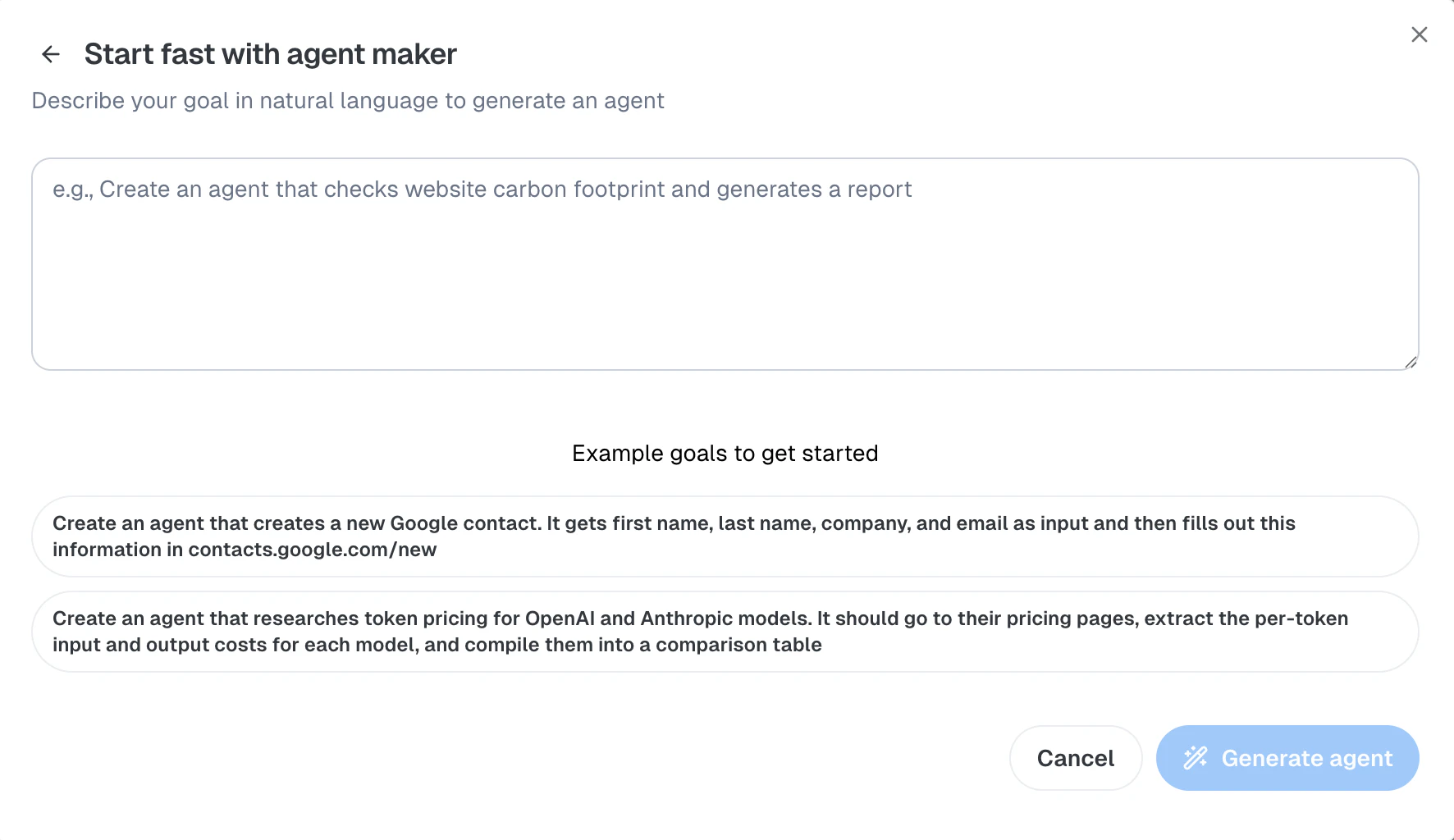
Enter a clear description of what you want the agent to do. Be specific about:
* What websites or tools the agent should use
* What data it should extract or actions it should take
* What the expected output should look like
Click **Generate agent** to start the process. Narada will open the side panel and begin building your agent.
## Example Goals
Not sure what to write? Here are some example goals to get started:
```
Create an agent that creates a new Google contact. It gets first name, last name,
company, and email as input and then fills out this information in contacts.google.com/new
```
```
Create an agent that researches token pricing for OpenAI and Anthropic models.
It should go to their pricing pages, extract the per-token input and output costs
for each model, and compile them into a comparison table
```
```
Create an agent that checks a website's carbon footprint score on
websitecarbon.com and generates a summary report
```
```
Create an agent that searches for software engineering jobs on LinkedIn,
extracts the top 5 results with title, company, and location, and saves
them to a Google Sheet
```
## What Happens After Generation
When Agent Maker generates your agent, it goes through several steps:
Narada's AI writes a Python agent based on your goal description, using the Narada SDK for browser automation.
Agent Maker automatically runs your new agent to verify it works as described.
The generated agent opens in a new tab in Agent Studio. You can review the code, see test results, and make edits.
Agent Maker explains what it built and asks if you'd like any changes. You can iterate directly in the chat.
The generated agent is a [Python Agent](/documentation/python-agents), a code-based automation using the Narada Python SDK. You can edit the code directly in Agent Studio.
## Tips for Writing Good Goals
Include specific websites, data fields, and expected outputs. "Extract job titles from LinkedIn" is better than "find jobs."
Break down multi-step tasks: "Go to the pricing page, extract costs per model, compile into a table."
Specify what data the agent receives as input and what it should produce as output.
One clear goal per agent. Complex tasks are better split into multiple agents that call each other.
## Agent Maker vs Imitation Learning
Both features generate custom agents, but they work differently:
| | Agent Maker | Imitation Learning |
| ----------------------------- | ------------------------------- | ------------------------------------------- |
| **How you describe the task** | Type a goal in natural language | Record yourself doing it in the browser |
| **Best for** | Tasks you can describe clearly | Tasks that are easier to show than describe |
| **Input** | Text description | Browser recording + audio narration |
| **Output** | Python Agent | Workflow with visual steps |
| **Iteration** | Chat back and forth to refine | Edit steps in the workflow editor |
**When to use which?** If you can easily describe the task in a sentence or two, use Agent Maker. If the task involves complex UI interactions that are hard to put into words, use [Imitation Learning](/documentation/imitation-learning) instead.
## Requirements
The Narada Chrome Extension must be installed and active. Agent Maker uses the extension to generate and test agents.
You must be signed in to your Narada account.
## Troubleshooting
* Make sure the Chrome extension is installed and up to date
* Try simplifying your goal description
* Check that the target websites are accessible from your browser
* Provide more specific instructions in your goal
* Use the chat to give Agent Maker feedback: "The agent should also click the Download button after extracting the data"
* You can always edit the generated Python code directly in Agent Studio
* Ensure you're typing the command in the Narada chat side panel
* The command must start with `/agentMaker` followed by a space and your goal
* Check that you're signed in to your Narada account